A NAS won't make your YouTube channel grow faster. But it will stop a hard drive failure from destroying six months of content, keep your footage library accessible without digging through a stack of external drives, and give you a place to archive completed projects without paying for cloud storage for the rest of your career. For Australian creators shooting 4K on Sony, Canon, or iPhone, the NAS case is straightforward once the storage pile reaches 4-8TB.
In short: For a solo YouTube creator shooting 4K H.264 or H.265, a 2-bay NAS with two 4-8TB drives in RAID 1 is the starting point. Add the Synology Photos app for automatic phone backup and the Drive client for folder sync from the edit PC. You don't need 10GbE. Standard Gigabit is enough for H.264/H.265 workflows. Set the budget using live Australian prices for the selected NAS and drive capacity; current totals vary materially by capacity and retailer.
The Creator Storage Problem (and Why External Drives Aren't the Answer)
Most YouTube creators start with external hard drives. And it works fine until the pile reaches a dozen drives and you can't remember which drive has the footage from the Bali trip or the product review from two years ago. External drives have three practical problems at scale:
- No redundancy: A single external drive failing loses everything on it. Drive failure rates vary by model, age, workload and operating conditions. Using more independent drives increases the chance that at least one will eventually fail, so maintain separate backups.
- No searchability: Files are siloed per drive. Finding a specific clip requires remembering which physical drive it's on, connecting it, and browsing manually.
- External drives can support automatic backups when connected and configured with software such as Time Machine or File History; disconnected archival drives still require a deliberate connection and rotation process.
A NAS centralises everything. All footage lands in one place, with RAID providing redundancy, Synology Drive or a mapped drive on the edit PC providing access, and Hyper Backup automating an offsite copy to cloud or a second drive. The folder structure is searchable from any device on the home network. Phone footage backs up automatically via the Synology Photos app in the background.
What Codecs Do You Actually Shoot?
Your codec determines whether you need Gigabit or 10GbE networking:
- Phone and consumer-camera 4K bitrates vary substantially by device, recording application, frame rate and quality setting; check the selected recording mode rather than relying on a single typical range. Well within 1GbE. Any current NAS handles this over standard Ethernet.
- Sony FX3, A7S III, A7R V (4K 10-bit H.265 or XAVC): 200-600 Mbps. Fine on 1GbE for single streams. Multiple simultaneous streams may push the limit.
- Blackmagic Pocket 4K and 6K BRAW data rates vary widely with model, resolution, frame rate, compression mode and scene complexity; use Blackmagic's data-rate tables for the selected recording mode. At the highest quality settings, you need 10GbE. At Q3, required throughput varies by resolution, frame rate and scene complexity; some Pocket 6K Q3 modes exceed 1GbE, so size the network to the documented data-rate range for the selected mode.
- Canon Cinema RAW Light bitrates vary substantially by camera, resolution and recording mode; determine whether 1GbE, 2.5GbE or 10GbE is appropriate from the selected mode's documented bitrate and the number of simultaneous streams.
For the majority of YouTube creators shooting with mirrorless cameras or phones in H.264/H.265, 10GbE can add hardware cost for a compatible NAS or adapter, workstation interface, switch and cabling; the amount depends on the existing equipment and chosen components. If you're shooting cinema RAW for a branded content or commercial side of the channel, the 4K/8K editing NAS guide covers the 10GbE-required tier.
NAS Options for YouTube Creators in Australia
NAS Options for YouTube Creators (AU Pricing, Diskless)
 Synology DS225+
|
 UGREEN DH4300 Plus
|
 Synology DS425+
|
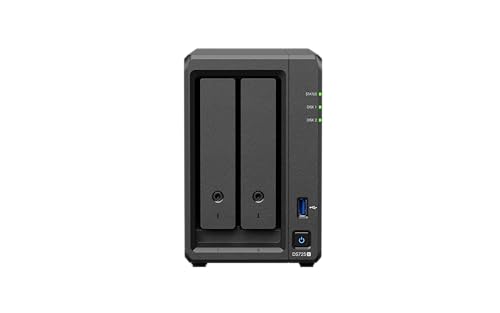 Synology DS725+
|
|
|---|---|---|---|---|
| AU Price | about $599 | $630 (UGREEN AU) | about $899 | about $999 |
| Drive bays | 2 × 3.5" | 4 × 3.5" SATA | 4 × 3.5" | 2 × 3.5" + 2 M.2 |
| Network | 1x 2.5GbE + 1x 1GbE | 1 × 2.5GbE | 1x 2.5GbE + 1x 1GbE | 1x 2.5GbE + 1x 1GbE |
| Container Manager | Yes (x86) | Yes (ARM64-compatible Docker containers) | Yes (x86) | Yes (x86/Ryzen) |
| Best for | Solo creator H.264/H.265 | Solo creator, fast local access | Creator + active backup | Creator + future expansion |
| Recommended drives | 2× 6TB WD Red Plus (non-validated third-party HDDs; requires DSM 7.3 policy support-verify the current compatibility list) | 4× 4TB WD Red Plus | 4× 4TB WD Red Plus | 2× 8TB WD Red Plus |
| Usable in RAID 1/5 | 6TB (RAID 1) | 12TB (RAID 5) | 12TB (RAID 5) | 8TB (RAID 1) |
Synology DS225+: The Most Practical Starting Point
For a solo YouTube creator, the DS225+ (market price about $599) hits the right balance of capability and cost. It runs DSM on an Intel Celeron, supports Container Manager (for running additional apps), does not include M.2 NVMe slots, and integrates with the full Synology software suite. Photos for phone backup, Drive for folder sync, Active Backup for PC backup, and Hyper Backup for cloud offsite.
Pair it with two 6TB WD Red Plus drives in RAID 1 for about 6TB of usable space (check Synology's compatibility list first, as the table above notes). That holds roughly 130 hours of 4K footage recorded at 100 Mbps, the rate the sizing section below uses (about 45GB per hour), before you set aside room for exports and project archives.
The DS225+ includes both 1GbE and 2.5GbE Ethernet ports and can operate on a standard Gigabit network. Plug it into any home router and it works. From the editing PC, map the NAS share as a network drive (Windows) or connect via SMB (Mac Finder > Go > Connect to Server). Edit directly from the mapped drive for H.264/H.265 content without any throughput issues.
UGREEN NASync: A Credible Alternative
UGREEN's DH4300 Plus offers 4 drive bays and 2.5GbE built-in at a price comparable to the DS225+. The 2.5GbE gives ~280 MB/s real-world throughput. Faster than 1GbE and sufficient for H.265 4K streams whose aggregate bitrate remains below the system's sustained storage and network throughput. The UGOS software is less mature than DSM and lacks some of its ecosystem depth (UGOS Pro does include AI-powered photo organization and computer-to-NAS backup), but for a creator whose main need is shared footage storage and basic backup, UGOS covers the essentials.
The DH4300 Plus uses an ARM processor and supports Docker for compatible ARM64 containers, but it does not support virtual machines. If you plan to run self-hosted apps (Plex, Home Assistant, etc.) on the same NAS, Synology's x86 models are the better choice. If you just want fast shared storage with a polished mobile app, UGREEN's value proposition is strong. See the UGREEN NAS Australia guide for a full model breakdown.
Workflow: How a YouTube Creator Uses a NAS Day-to-Day
A practical NAS workflow for a solo creator:
After a shoot: Ingest cards to a local SSD (fast, avoids NAS becoming the bottleneck during ingest). Once ingest is complete, copy the shoot folder to the NAS via a mapped network drive. Takes 10-20 minutes for a typical 100GB shoot over Gigabit.
Editing: Open projects directly from the mapped NAS drive for H.264/H.265 content. The editing PC's CPU does the decoding; the NAS just needs to deliver the files fast enough. 1GbE handles this comfortably for compressed codecs. For scrubbing-intensive offline cuts, keep the current project on a local SSD and sync the finished sequence and exported files back to NAS.
Export: Render exports to a local SSD, then move finished files to an /exports/ folder on the NAS. Keeping exports on NAS means they're accessible for re-upload, repurposing, or client delivery without hunting for the render drive.
Phone footage: The Synology Photos mobile app automatically backs up iPhone or Android photos and videos to the NAS Personal Space whenever connected to home Wi-Fi. No manual steps. Phone footage for B-roll, talking head shots, or vlogs lands on the NAS in the background.
Offsite backup: Configure Hyper Backup to send an encrypted copy to Backblaze B2. Backblaze currently lists B2 at $6.95/TB/month; calculate the Australian cost using the live rate, currency conversion and applicable GST. On Australian NBN connections, the initial full backup takes days. Schedule the initial backup around the connection's measured upload rate and the retail plan's data conditions; a multi-terabyte upload may take weeks or longer.
Storage Sizing for Creators
Quick sizing rules for YouTube creators:
- iPhone 4K30 HEVC storage use varies by recording application and settings; Apple says Final Cut Camera may use more than 175MB per minute, so use the selected app's storage estimate for capacity planning.
- Sony mirrorless 4K 100Mbps H.265: ~45GB/hour → 1TB holds ~22 hours
- Sony FX3 4K 600Mbps XAVC I: ~270GB/hour → 1TB holds ~3.7 hours
- Blackmagic Pocket 4K BRAW Q5 storage use is variable and depends on resolution, frame rate and scene complexity; use Blackmagic's data-rate calculator or current technical table for the selected mode.
Add 50% headroom for exports, project files, and thumbnail assets. A creator shooting 50 hours of mirrorless 4K per year with 50% overhead needs roughly 3.4TB of new storage annually. A 6TB RAID 1 array covers approximately 1.5-2 years at that rate before needing expansion. When drives fill, replace one drive at a time with larger drives. Synology's SHR handles online expansion without data loss.
Related reading: our NAS buyer's guide.
Use our free Transfer Speed Estimator to estimate how long large transfers will take over your connection.
See also: our complete UGREEN NAS Australia guide.
See also: our complete Synology NAS Australia guide.
Do I need RAID for a YouTube creator NAS?
RAID 1 (mirroring) is strongly recommended. It means if one drive fails, no data is lost. You replace the failed drive and the array rebuilds. Without RAID, a single drive failure loses everything. Creator footage is almost impossible to recreate (you can't re-shoot the event or travel). RAID adds one drive to your cost (you buy 2 drives for 1-drive's usable space) but reduces downtime and the risk of data loss from a single-drive failure. That said, RAID is not a backup. It protects against drive failure but not against accidental deletion or NAS hardware failure. Still maintain an offsite backup (Hyper Backup to cloud or an external drive stored offsite).
Can I use a NAS for editing 4K footage from my Sony or Canon camera?
Yes, for H.264 and H.265 footage from consumer and prosumer mirrorless cameras. Sony's XAVC S and Canon's MP4 H.265 both work fine over 1GbE from a NAS. The editing application (Premiere, Resolve, Final Cut) decodes the footage locally. The NAS only needs to deliver the files at adequate speed, which 1GbE handles for these codecs. Set up a mapped network drive on your edit PC, point Premiere or Resolve to the NAS folder as the media source, and edit directly. Direct editing can work well when the aggregate media bitrate remains below sustained NAS and network throughput, but responsiveness varies with the codec structure, stream count, storage array, network and editing workload.
What's the best way to back up a NAS for a YouTube creator?
The standard recommendation is a 3-2-1 backup: 3 copies, 2 different media, 1 offsite. For a creator: keep (1) the working footage on the NAS, (2) a separate local backup on another device, and (3) an offsite backup. RAID 1 provides disk-failure resilience but is not a separate backup copy. Backblaze B2 is the most cost-effective for creators. Backblaze currently lists B2 at $6.95/TB/month, with free egress up to 3× average monthly storage. Calculate the AUD amount using the live rate, currency conversion and applicable GST. Initial and incremental backup times depend on the amount uploaded, measured upload speed, protocol overhead and daily run time; a multi-terabyte initial backup can take weeks or longer.
Should I connect the NAS to my router via Ethernet or Wi-Fi?
Always Ethernet for the NAS. Never Wi-Fi. A NAS connected via Wi-Fi will be significantly slower than its rated throughput due to Wi-Fi protocol overhead and signal variability. Run an Ethernet cable from the NAS to your router or a switch. For the editing workstation, Ethernet is also preferred. A wired Gigabit connection between the workstation, switch, and NAS delivers consistent performance. Wi-Fi is fine for browsing files from a laptop or phone but not for active video editing from the NAS.
How does Australian NBN affect NAS usage for creators?
NBN speed affects two aspects: remote access to your NAS when away from home, and offsite cloud backup speed. For local network use (editing at home, automatic phone backup), NBN speed is irrelevant. Everything travels over your internal LAN at Gigabit speeds. For remote access (reviewing footage while travelling), NBN upload speed determines how fast you can pull files from home. Upload speed depends on the NBN access technology and current retail plan; check the plan's advertised and measured upload rate before estimating remote-access performance. That's enough for downloading proxies or small exports but too slow for live editing. CGNAT on some NBN connections (particularly fixed wireless) also blocks incoming connections. Check with your ISP if remote NAS access is important. See the remote access guide for full details.
New to NAS and not sure where to start? The What is a NAS guide covers the basics. What a NAS is, when it makes sense to buy one, and what to consider before committing to a purchase.