NAS noise varies substantially with the enclosure, installed drives, workload, fan mode, distance and measurement conditions. Roughly the volume of a whisper to a quiet library. But the hard drives inside them are often louder than the NAS itself. Where you place your NAS matters more than most buyers realise. A poorly placed NAS can overheat in an Australian summer, vibrate through a desk, or hum loudly enough to disrupt a home office. The good news is that with a few practical decisions about location, ventilation, and cable routing, you can run a NAS that you barely notice is there. This guide covers real-world noise levels for popular Synology, QNAP, and Asustor models, explains the difference between fan noise and drive noise, walks through the best and worst placement options in typical Australian homes, and addresses the unique challenge of keeping electronics cool when outside temperatures hit 40°C+.
In short: A NAS with HDDs may be audible in a quiet room, with total noise depending on the enclosure, exact drive models, number of drives, workload, distance and room acoustics. For most people, the best placement is a well-ventilated cupboard or shelf in a home office, connected via Ethernet. Avoid garages and non-insulated spaces in Australian summers. Ambient temperatures above 35°C reduce thermal headroom; monitor the NAS and drives and keep each component within its manufacturer-specified limits. If you need a silent NAS, consider a 2-bay unit with SSDs or place a standard NAS in another room with a long Ethernet run.
Understanding NAS Noise: What Actually Makes the Sound
NAS noise comes from two distinct sources, and understanding the difference is key to managing it. The first source is the cooling fan(s) inside the NAS enclosure. The second. And usually louder. Source is the hard drives themselves.
Fan Noise
Most conventional desktop NAS enclosures have one or more cooling fans, although fanless NAS models also exist. These fans run at variable speeds controlled by the NAS operating system based on internal temperature. Fan noise and speed vary by NAS model, fan mode, workload and internal temperature; published whole-system figures should not be treated as fan-only measurements. Synology and QNAP both offer fan speed controls in their software. You can set fans to "quiet mode" at the cost of slightly higher internal temperatures, or "full speed" for maximum cooling during intensive tasks like Plex transcoding which generates significant heat.
Hard Drive Noise
This is the noise source most people underestimate. A NAS-grade 3.5" hard drive like the Seagate IronWolf or WD Red Plus produces two types of noise: Idle and seek acoustics vary substantially by the exact drive model and capacity; consult the relevant drive datasheet rather than relying on a single generic range. With multiple HDDs, aggregate drive noise and vibration can increase and may dominate the enclosure’s fan noise. Some enterprise HDD models are louder than lower-RPM NAS drives, but acoustics must be compared using the exact model and capacity. They are built for performance in server rooms, not silence in living rooms. For a detailed look at drive characteristics, see our best NAS hard drives guide.
Tip: If you want a near-silent NAS, 2.5" SSDs eliminate all mechanical noise. The only sound will be the cooling fan at low speed. The trade-off is cost per terabyte. SSDs are significantly more expensive than HDDs for bulk storage. SSD caching can reduce HDD reads for cacheable workloads with a sufficient cache-hit rate, but results depend on workload and cache configuration.
NAS Noise Levels by Model
Published acoustic figures use vendor-specific test setups. Synology’s cited figures include installed idle HDDs, and results should not be compared or extrapolated without matching the drive configuration, distance and measurement conditions. The table below shows manufacturer-stated levels alongside typical real-world expectations with NAS-grade HDDs installed.
NAS Noise Levels. Popular Models (Desktop)
 Synology DS225+
|
 Synology DS423
|
 Synology DS925+
|
QNAP TS-233 |
 QNAP TS-464
|
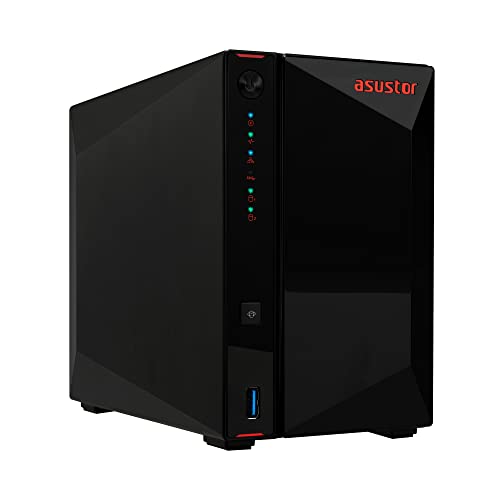 Asustor AS5402T
|
|
|---|---|---|---|---|---|---|
| Bays | 2 | 4 | 4 + | 2 | 4 + 2 NVMe | 2 + 4 NVMe |
| Stated Noise (Idle) | 19.6 dB(A) | 20.6 dB(A) | 20.5 dB(A) | Not verified | Not verified | Not verified |
| Unsourced Estimate (HDDs, Idle) | ~24-26 dB(A) | ~27-30 dB(A) | ~27-30 dB(A) | ~22-25 dB(A) | ~27-30 dB(A) | ~23-26 dB(A) |
| Unsourced Estimate (HDDs, Active) | ~28-32 dB(A) | ~32-36 dB(A) | ~32-36 dB(A) | ~27-30 dB(A) | ~32-36 dB(A) | ~28-32 dB(A) |
| Fan Size | 1×92mm | 2×80mm | 2×92mm | 1×80mm | 1×120mm | 1×70mm |
| Fan Speed Control | Yes (DSM) | Yes (DSM) | Yes (DSM) | Yes (QTS) | Yes (QTS) | Yes (ADM) |
A few patterns emerge from these numbers. A two-bay NAS populated with fewer HDDs will often have less aggregate drive noise, but exact drives, fan design and fan settings also matter. Fewer drives means less aggregate noise and often smaller or fewer fans. Synology models tend to have slightly higher stated noise than QNAP equivalents on paper, but real-world differences are negligible once drives are installed. The drives dominate. When comparing noise, consider populated drive count, exact drive acoustics, enclosure design and fan controls rather than brand or bay count alone. Our best 2-bay NAS guide covers the quietest options for noise-sensitive environments.
Noise in Context: What dB(A) Actually Means
Decibel numbers are meaningless without context, so here is a practical reference:
- 10 dB(A): Breathing, virtually silent
- 20 dB(A): Rustling leaves, empty quiet room
- 25 dB(A): Whisper at 1 metre
- 30 dB(A): Quiet library, very soft background hum
- 35 dB(A): Quiet home office with no other noise sources
- 40 dB(A): Refrigerator hum, quiet residential street
- 50 dB(A): Quiet indoor background sound
Most NAS devices sit in the 20-35 dB(A) range, which means they are audible in a silent room but easily masked by everyday background noise. Air conditioning, a television, traffic, or even an open window. In a bedroom at night with nothing else running, a 4-bay NAS with active drives is noticeable. In a home office during the day, it blends into the background.
Where to Put Your NAS: Placement Options Ranked
The ideal NAS location balances four factors: noise isolation (can you hear it?), temperature (will it overheat?), network connectivity (can you run Ethernet?), and accessibility (can you reach it for drive swaps and maintenance?). Here is how common Australian home placements stack up.
Home Office or Study. Most Common
The most popular NAS placement and often the best compromise. Your router is usually nearby, making Ethernet easy. Temperature is controlled by household air conditioning or a ceiling fan. You can reach the NAS for maintenance without getting off your chair. The downside is noise. If you work in silence, a 4-bay NAS with active drives is audible. A 2-bay unit or SSD-equipped NAS is much less intrusive. Place the NAS on a shelf rather than directly on your desk to reduce transmitted vibration.
Hallway Cupboard or Linen Closet. Best for Noise
Tucking the NAS into a cupboard in the hallway is the sweet spot for many Australian homes. The closed door eliminates most audible noise. However, ventilation is critical. A sealed cupboard will trap heat. Leave the door slightly ajar, install a small USB-powered vent fan, or choose a cupboard with louvred doors. A closed cupboard can become warmer than the surrounding room; measure the cupboard and drive temperatures because the increase depends on heat load and ventilation. You will need to run an Ethernet cable from your router to the cupboard. See the networking section below, or our NAS networking guide for detailed cable routing advice.
Under the Stairs. Good Option If Available
Two-storey Australian homes sometimes have usable space under the staircase. This location offers decent noise isolation and more airflow than a cupboard. Temperature is typically stable since it is an interior space. The challenge is running Ethernet and power to what is often an awkward, unrenovated area. If you already have a network cabinet or patch panel under the stairs, this is an excellent NAS location.
Garage. Risky in Australia
This is where the Australian climate becomes a real factor. Uninsulated garages can exceed a NAS enclosure’s rated ambient temperature during hot weather; measure the actual location before using it for a NAS. Well beyond the operating limits of any NAS and its drives. Most NAS devices are rated for 0-40°C ambient operating temperature. Hard-drive operating limits vary by exact model and are distinct from the NAS enclosure’s ambient-temperature rating; consult both specifications. A garage that regularly exceeds 40°C will shorten drive lifespan, cause thermal throttling, and potentially trigger the NAS to shut down for self-protection.
Warning: Do not place your NAS in an Australian garage unless the space is insulated and climate-controlled. Some uninsulated garages can exceed 40°C during hot weather, depending on location, construction and exposure; verify the actual space with a thermometer. Manufacturer limited warranties may exclude a failure shown to have been caused by operation outside published temperature specifications. Australian Consumer Law rights remain separate, although a remedy may not apply where consumer misuse caused the problem.
Laundry. Decent If Ventilated
The laundry is a common placement in Australian homes because it is separated from living areas and often has a hard floor (reducing vibration transfer). Two concerns: humidity from washing and drying, and dust from lint. Place the NAS on a shelf well above the washing machine. Do not place the NAS on a washing machine, because vibration and movement may exceed the equipment’s model-specific operating limits. Ensure the room has some ventilation, either through a window or exhaust fan. If you run a dryer without external venting, humidity levels will spike during drying cycles, which is not ideal for electronics. A laundry with a vented dryer and a window is a perfectly serviceable NAS location.
Bedroom. Not Recommended
A NAS with spinning hard drives in a bedroom is a bad idea if you are a light sleeper. At 2am with no other noise, a 4-bay NAS running a backup or RAID scrub is clearly audible. The intermittent clicking of drive heads seeking is particularly disruptive because it is irregular. Even a 2-bay NAS produces enough low-frequency hum from spinning platters to bother some people. If the bedroom is your only option, schedule intensive tasks (backups, scrubs, antivirus scans) for daytime hours through your NAS operating system, and set the drives to hibernate after a period of inactivity.
Placement Quick Reference
NAS Placement Options for Australian Homes
| Home Office | Hallway Cupboard | Under Stairs | Garage | Laundry | Bedroom | |
|---|---|---|---|---|---|---|
| Noise Isolation | Low | High | High | High | Medium | Very Low |
| Temperature Risk | Low | Medium | Low | Very High | Medium | Low |
| Ethernet Access | Easy | Run required | Run required | Long run | Run required | Easy |
| Accessibility | Excellent | Good | Fair | Fair | Good | Excellent |
| AU Summer Suitability | Good | Good* | Good | Poor | Fair | Good |
| Overall Rating | Recommended | Recommended | Good | Avoid | Acceptable | Avoid |
* Cupboard placement requires deliberate ventilation to avoid heat build-up, particularly during Australian summers when household ambient temperatures are already elevated.
Temperature and Ventilation: The Australian Summer Factor
Australia presents a unique challenge for NAS placement that guides written for North American or European audiences simply do not address. Temperatures above 40°C occur during extreme heat events in several Australian cities and regional areas, but their frequency varies substantially by location. Indoor temperatures in non-air-conditioned spaces can easily reach 35-40°C. Add a NAS generating its own heat inside an enclosed space, and you quickly exceed safe operating limits.
Safe Operating Temperatures
These are the temperature ranges you need to stay within:
- NAS enclosure: Most desktop NAS devices are rated for 0-40°C ambient. This means the air temperature around the NAS, not inside it. Internal component temperatures will usually differ from ambient, with the difference depending on workload, enclosure design and airflow; monitor the NAS’s actual sensors.
- Hard drives: NAS-grade HDDs like the Seagate IronWolf and WD Red Plus are rated for 0-60°C operating temperature, but optimal drive temperature is 25-45°C. The Google datacenter study found a weaker relationship between temperature and drive failure than previously reported; use each drive’s published limits and monitor temperatures rather than treating 45°C as a universal failure threshold.
- SSD temperature limits and thermal-management behaviour vary by model; follow the SSD and NAS manufacturers’ specifications and alerts.
Australian summer reality: If your home regularly hits 35°C indoors without air conditioning during a heatwave, and your NAS is in a cupboard adding another 5-10°C, your drives could be running at 45-50°C. That is beyond the optimal range and into territory that accelerates wear. Either air-condition the space, improve ventilation, or move the NAS to a cooler location during extreme heat events. Monitoring drive temperatures through your NAS software (DSM, QTS, or ADM all show drive temps) is essential during summer.
Ventilation Tips for Enclosed Spaces
If you are placing your NAS in a cupboard, cabinet, or any enclosed space, follow these ventilation principles:
- Airflow path: The NAS needs cool air in and a way for hot air to escape. Front intake, rear exhaust is the standard NAS airflow design. Position the NAS so its rear exhaust is not pressed against a wall. Leave at least 10-15cm of clearance behind the unit.
- Door ventilation: A fully sealed cupboard with a closed door traps heat. Louvred doors are ideal. If your cupboard has a solid door, leave it slightly ajar or install a passive vent panel.
- Active ventilation: A small 120mm USB fan (powered by the NAS USB port or a separate USB charger) placed to exhaust hot air from the top of the cupboard makes a significant difference. These fans are inexpensive and near-silent at low speed.
- Avoid stacking: Do not place your NAS on top of your router, modem, or other electronics. Each device generates heat, and stacking compounds the problem.
- Shelf placement: Heat rises. If your cupboard has multiple shelves, place the NAS on a lower shelf where cooler air settles, with the top of the cupboard acting as a heat exhaust path.
Power Consumption and Heat
A NAS that draws more power generates more heat. A 2-bay unit produces far less heat than a 4-bay unit under load. If heat management is a concern in your placement location, a smaller NAS is a practical advantage beyond just the electricity cost savings. Every watt of power consumed becomes a watt of heat that needs to be dissipated. In a well-ventilated room this is trivial. In a sealed cupboard in a 38°C house, it matters.
Connecting a Remote NAS: Ethernet vs WiFi
If you move your NAS out of the room where your router lives, you need to get network connectivity to it. You have two practical options: run an Ethernet cable or rely on WiFi. The answer is straightforward. always use Ethernet if possible.
Why Ethernet Is the Right Choice
A NAS is a storage server. It handles continuous data transfers. File serving, backups, media streaming, cloud sync. These are sustained, bandwidth-heavy workloads that benefit from the consistency and low latency of a wired connection. A well-performing Gigabit Ethernet connection can approach about 110 MB/s for file transfers, while Wi-Fi throughput and latency vary widely with equipment, signal strength, interference and competing devices. For remote access via VPN, a stable wired connection to the NAS ensures consistent performance even when clients connect over variable internet links. NBN upload speed depends on the access technology and retail plan, with current residential tiers ranging from low-speed uploads to 100 Mbps or more; remote NAS performance is often constrained by the slowest link in the end-to-end path. But a wired NAS still provides the most reliable foundation. Note that some NBN connections use CGNAT, which can complicate remote access setups.
Ethernet also does not compete with your other WiFi devices. Every WiFi device on your network shares the same radio spectrum. Adding a NAS to WiFi means your file transfers compete with phones, tablets, laptops, smart home devices, and streaming boxes for airtime. A wired NAS stays off the WiFi entirely.
Running Ethernet in an Australian Home
Many Australian homes. Particularly single-storey builds which dominate the housing stock. Were not built with structured Ethernet cabling. Running a cable from your router to a cupboard or laundry typically involves one of these approaches:
- Along skirting boards: The simplest method. Run a flat Cat6 Ethernet cable along skirting boards and under carpet edges. Flat cables are 1-2mm thick and nearly invisible when tucked against the wall. No tools required.
- Through the roof space: If you have ceiling access (most single-storey Australian homes have a roof cavity accessible via a manhole), running Ethernet through the ceiling is the cleanest long-term solution. Drop cables down through wall cavities to Ethernet wall plates. Use an appropriately registered cabler, or someone directly supervised by one, for fixed or concealed data cabling, and obtain local quotes because installation costs vary.
- Through internal walls: For fixed or concealed data cabling, use an appropriately registered cabler or someone working under their direct supervision.
- Powerline adapters: If running a cable is genuinely impossible, powerline Ethernet adapters send network signals through your home electrical wiring. Performance varies hugely depending on the age and quality of your wiring. Acceptable for basic NAS access but not recommended for heavy file transfers or media streaming.
For a comprehensive guide to NAS network setup including 2.5GbE upgrades, switch selection, and cable types, see our NAS networking guide.
Tip: Buy Cat6 cable, not Cat5e. The price difference is negligible, and Cat6 supports 10 Gigabit Ethernet at shorter distances (up to 55m), future-proofing your installation for when you upgrade to a 2.5GbE or 10GbE NAS. For runs under 30m inside a home, Cat6 is more than sufficient for any current or near-future NAS networking standard.
When WiFi Is Your Only Option
Most consumer NAS devices do not have built-in WiFi. They are designed for wired connections. If Ethernet is genuinely impossible, you can connect a NAS to WiFi using a WiFi bridge (a WiFi access point or mesh node configured in bridge/client mode, connected to the NAS via Ethernet). This gives the NAS a WiFi backhaul to your router. Performance will be limited by your WiFi conditions, but for light use. Occasional file access, overnight backups, basic media streaming. It works. Whether a Wi-Fi bridge can support 4K streaming or large transfers depends on sustained throughput, media bitrate, signal quality, congestion and the bridge hardware.
Vibration: The Overlooked Noise Factor
A NAS with spinning hard drives vibrates. It is a subtle, low-frequency vibration caused by the drives' motors and spinning platters, and it can be surprisingly annoying when transmitted through a desk or shelf. The vibration itself is also a risk factor for the drives. Hard drive manufacturers specify vibration tolerance limits, and drives in a multi-bay NAS can affect one another through transmitted rotational vibration.
Practical Vibration Dampening
These simple measures reduce transmitted vibration significantly:
- Rubber or silicone feet: Most NAS devices come with rubber feet. If they have been removed or compressed flat over time, replace them. Aftermarket silicone anti-vibration pads (from electronics retailers or Amazon AU) make a noticeable difference on hard surfaces.
- Mouse pad or foam mat: Placing the NAS on a thick mouse pad, rubber mat, or a square of acoustic foam absorbs vibration before it reaches the shelf or desk. This is the cheapest and most effective dampening method.
- Avoid hollow furniture: A NAS sitting directly on a hollow IKEA desk acts like a speaker box. The hollow cavity amplifies vibration into audible hum. Place the NAS on something solid, or add a dampening layer underneath.
- Do not wall-mount without dampening: Wall-mounting a NAS (using a shelf bracket) can transmit vibration directly into the wall structure, which then resonates through the room. Use a rubber-mounted shelf or place dampening material between the NAS and the mount surface.
- Drive selection matters: RV-sensor support and approved bay count vary by exact drive model. Use drives listed as compatible with the NAS and rated for the intended multi-bay configuration. This is one of the reasons NAS-grade drives are worth the premium over standard desktop drives.
Quietest NAS Options for Noise-Sensitive Environments
If keeping noise to an absolute minimum is your priority. Whether for a bedroom, recording studio, or open-plan living area. Here are the practical approaches ranked from quietest to acceptable:
1. 2-bay NAS with 2.5" SSDs: Near-silent. No spinning platters, no drive seek noise. The only sound is the cooling fan at low speed. Using 2.5-inch SATA SSDs removes mechanical drive noise, but total enclosure noise still depends on the model’s fan behaviour and measurement conditions. Effectively inaudible in any room with normal background noise. Cost per terabyte is high, but for users with modest storage needs (1-4TB total), this is the gold standard for silence.
2. 2-bay NAS with quiet HDDs: Minimal noise. WD Red Plus and Seagate IronWolf acoustics vary by exact model and capacity; compare the relevant idle and seek specifications before buying. In a 2-bay NAS, idle noise is typically 24-26 dB(A). Noticeable in a dead-silent room, but easily masked by any background sound.
3. NAS in another room: The most practical solution for most people. Put a standard 4-bay NAS in a cupboard or laundry, run an Ethernet cable, and enjoy zero noise in your workspace. Moving the NAS to another room usually reduces perceived noise substantially, although results depend on the building and vibration transmission.
4. 4-bay NAS with fan set to quiet mode: Audible but unobtrusive. Setting fans to quiet/low in your NAS software reduces fan noise at the cost of slightly higher drive temperatures. Combined with NAS-grade drives and vibration dampening, a 4-bay unit can sit on a shelf in a home office without being a distraction for most people.
Power Protection and UPS Placement
Wherever you place your NAS, connect it to an uninterruptible power supply (UPS). A UPS adds its own considerations to placement. Most desktop UPS units produce a faint hum from their transformer, and some models have fans that spin up during battery charging or under load. Place the UPS alongside the NAS so they share the same location and power source. A UPS also adds heat to the environment, so factor this into your ventilation planning for enclosed spaces. For detailed UPS recommendations and sizing, see our UPS for NAS guide.
UPS and temperature: Lead-acid batteries in UPS units degrade faster at high temperatures. A UPS in a hot cupboard during an Australian summer will have a shorter battery lifespan than one in an air-conditioned room. If your NAS is in a warm location, check UPS battery health annually and budget for replacement batteries every 2-3 years instead of the typical 3-5 years.
NAS Placement Checklist
Before settling on a location for your NAS, run through this checklist:
- Power outlet nearby? Power outlet nearby? The UPS needs a suitable wall outlet, and the NAS plugs into a battery-backed outlet on the UPS.
- Ethernet connectivity? Can you run a cable from your router, or is there an existing Ethernet wall plate? If not, how will you get a wired connection to this location?
- Ventilation adequate? Is there airflow around the NAS, or is it sealed in a box? Can hot air escape?
- Temperature safe? Will this location stay below 35°C during summer, including inside any enclosure? Monitor with a cheap digital thermometer for a few days during warm weather to confirm.
- Stable surface? Is the NAS on a solid, level surface that will not amplify vibration?
- Accessible for maintenance? Can you reach the NAS to swap a failed drive without dismantling furniture? Drive failures require physical access.
- Safe from water? Not under a leaking air conditioning unit, not on the floor in a laundry, not near a window that gets left open in rain.
- Away from direct sunlight? A NAS in direct sun through a window adds significant heat load on top of its own heat generation.
Australian Consumer Law Note
ACL note: Australian Consumer Law protections apply when purchasing a NAS from Australian retailers. If your NAS develops a fault. Including fan or thermal issues. Your first step for a faulty product is usually the retailer that sold it. The ACCC explains your rights under the Australian Consumer Law at accc.gov.au. However, damage caused by operating the NAS outside its rated conditions (such as in an environment consistently above 40°C) may not be covered. Always operate your NAS within manufacturer-specified temperature ranges and keep your receipt. For official guidance, visit accc.gov.au.
Related reading: our NAS buyer's guide.
Our NAS Power Cost Calculator estimates annual running cost at your AU state electricity rate. Useful context when deciding whether your NAS warrants a dedicated, acoustically isolated space.
See also: our complete Synology NAS Australia guide.
How loud is a NAS compared to a desktop computer?
A NAS is significantly quieter than a desktop computer. Desktop-PC and NAS noise varies widely with hardware, workload, fan profiles, installed drives, distance and measurement conditions; compare like-for-like test results where available. The main noise difference is that a NAS has fewer fans and lower-power components, but its hard drives produce a distinctive clicking sound during active read/write operations that a desktop with an SSD does not.
Can I put my NAS in the garage in Australia?
In most parts of Australia, an uninsulated garage is not a safe location for a NAS. Some uninsulated garages can exceed NAS ambient-temperature limits during hot weather; measure the garage through warm periods before using it for a NAS. NAS devices are rated for a maximum ambient temperature of 40°C, and hard drives suffer accelerated wear above 45°C. If your garage is insulated and air-conditioned, it can work. Otherwise, choose an indoor location with climate control. Monitor temperatures with a digital thermometer before committing to a garage placement.
Will a NAS overheat in a cupboard?
It can, especially in summer. A sealed cupboard can become warmer than the room, but the temperature rise depends on the NAS heat load, cupboard construction and airflow; measure it directly. If your home is already at 30°C during a heatwave, that puts the cupboard at 35-40°C. Right at the limit. Ensure the cupboard has some ventilation: louvred doors, a gap at the top, or a small USB exhaust fan. Check drive temperatures through your NAS software during warm periods. Most NAS operating systems (DSM, QTS, ADM) display real-time drive temperatures and can send alerts if they exceed a threshold you set.
Can I connect my NAS over WiFi instead of Ethernet?
Most NAS devices do not have built-in WiFi and are designed for wired Ethernet connections. You can use a WiFi bridge (a wireless access point in client/bridge mode) connected to the NAS via Ethernet to provide WiFi connectivity. However, WiFi is not recommended for primary NAS use. Wi-Fi throughput and latency vary with equipment, signal, interference, band and competing traffic, while a well-performing Gigabit Ethernet link can approach about 110 MB/s for file transfers. For light use like occasional file access it works, but for backups, Plex streaming, or heavy file transfers, always run Ethernet. See our networking guide for cable routing options in Australian homes.
Do SSDs make a NAS completely silent?
Almost. SSDs eliminate all mechanical noise. No spinning platters, no clicking heads. SSDs eliminate mechanical drive noise, but any remaining enclosure noise depends on whether the NAS has a fan and how that fan operates. That is effectively inaudible in any room with normal ambient sound (air conditioning, traffic, etc.). The trade-off is cost: a 4TB NAS-grade SSD costs significantly more than a 4TB NAS-grade HDD. For users with modest storage needs who prioritise silence. Such as a first NAS for document backup and light media serving. SSDs are worth considering.
How do I reduce NAS vibration noise on my desk?
Place the NAS on a vibration-dampening surface: a thick mouse pad, a square of acoustic foam, or aftermarket silicone anti-vibration pads (available from electronics retailers). Avoid placing the NAS directly on a hollow desk, as the cavity amplifies vibration into an audible hum. Ensure the NAS rubber feet are intact and not compressed flat. If vibration is a significant concern, moving the NAS off the desk entirely. Onto a shelf, into a cupboard, or into another room with an Ethernet run. Is the most effective solution.
What is the best NAS placement for a home office?
For a home office, the best placement depends on your noise tolerance. If you work in silence, place the NAS in a nearby hallway cupboard or closet with an Ethernet cable run. This eliminates noise while keeping the NAS accessible. If moderate background noise does not bother you, a shelf in the home office near your router is the simplest setup: short Ethernet cable, easy access, and controlled temperature. Avoid placing it directly on your desk where vibration transfers through the surface. Use a dampening pad if desk placement is your only option. For a detailed guide on choosing the right NAS for a home setup, see our best NAS for home guide.
Need help choosing a NAS that suits your space and budget? Our buying guide covers the top models for Australian homes.